Understanding Plugin Conflicts in WordPress
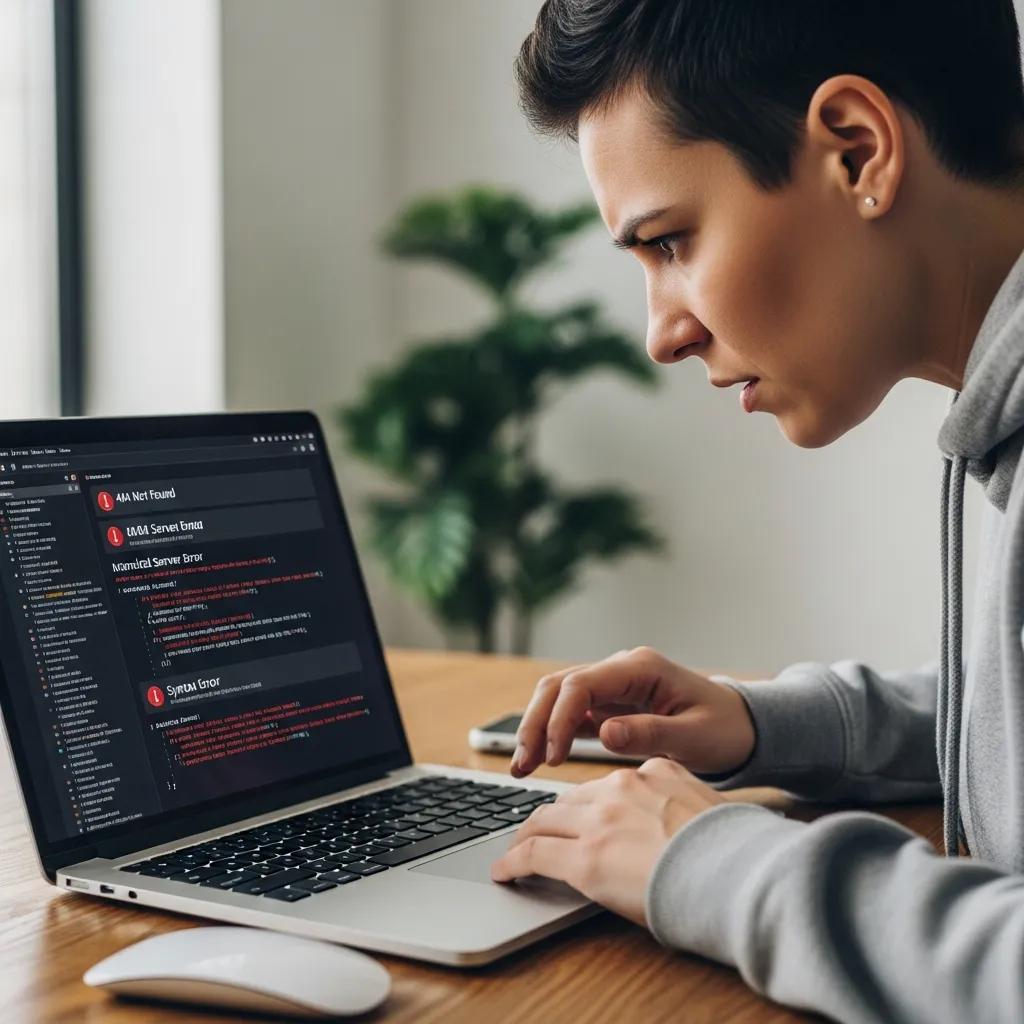
Plugin conflicts are a frequent cause of WordPress site breakage, occurring when two or more plugins attempt to perform the same function or interfere with each other's code. This can lead to unexpected errors, broken features, or even a complete site crash, making it crucial to understand how these conflicts arise and how to mitigate them.
For example, a plugin designed to manage user roles might conflict with a security plugin that also modifies user capabilities. When both plugins are active, they may overwrite each other's settings, leading to login issues or incorrect permission assignments. Identifying and resolving these conflicts often involves a systematic process of deactivation and reactivation.
The Impact of Theme and Core WordPress Updates on Plugins
Beyond direct plugin-to-plugin conflicts, the interaction between plugins, your active theme, and the WordPress core itself can also lead to compatibility issues. When WordPress or your theme undergoes an update, it might introduce changes that older or less frequently updated plugins are not designed to handle, causing them to malfunction or break.
For instance, a new WordPress core update might deprecate a function that a specific plugin relies on. If the plugin developer hasn't updated their code to use the new method, the plugin will likely stop working after the core update. Similarly, a theme update that significantly alters page structure or CSS could cause plugins that depend on specific HTML elements or styling to display incorrectly.
Best Practices for WordPress Plugin Management and Updates
Effective plugin management is essential for maintaining a stable and secure WordPress website. This involves a proactive approach to updates, careful selection of plugins, and regular checks for compatibility. By adhering to best practices, you can significantly reduce the risk of encountering issues after updates.
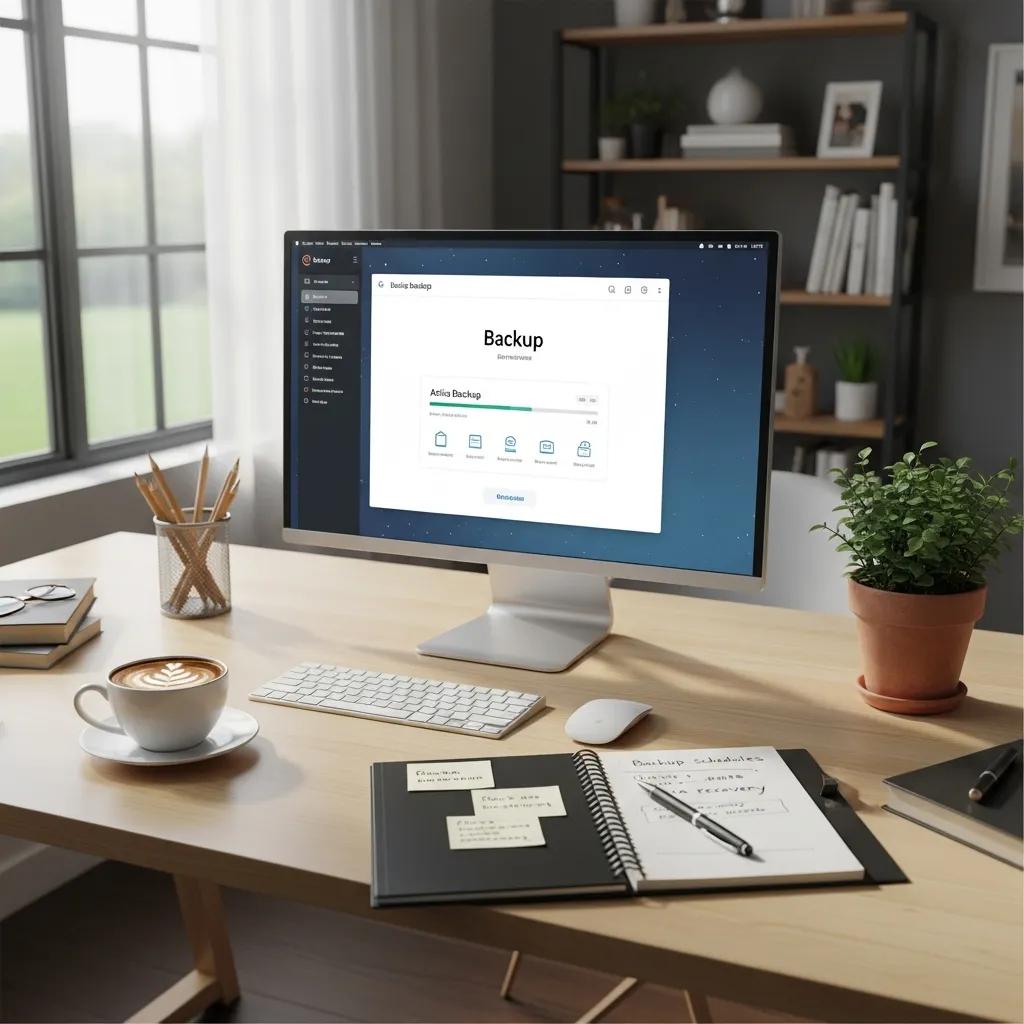
Key practices include always performing a full site backup before initiating any updates, testing new plugins on a staging environment before deploying them to your live site, and regularly auditing your installed plugins to remove any that are no longer necessary or actively maintained. Keeping plugins updated is vital, but doing so cautiously is paramount.
The Role of Professional WordPress Maintenance Services
For many website owners, managing WordPress updates and ensuring plugin compatibility can be a complex and time-consuming task. Professional WordPress maintenance services, such as those offered by Secure WP Solutions, provide expert oversight and proactive management to keep your site running smoothly and securely.
These services typically include regular backups, timely updates of themes and plugins, security monitoring, and performance optimization. By entrusting these critical tasks to professionals, you can benefit from their expertise in identifying potential conflicts before they impact your site, ensuring that updates are applied efficiently and safely, and freeing up your time to focus on your core business.