How to Restore a WordPress Website From a Backup Step by Step

How to Restore a WordPress Website From a Backup Step by Step Using Reliable Backup Plugins

Restoring a WordPress website from a backup is a crucial skill for any website owner, ensuring that your content and data are safe from unexpected issues. This guide will walk you through the step-by-step process of restoring your WordPress site, focusing on the essential types of backups, manual restoration methods, and the best plugins available for efficient recovery. Many users face challenges when their site goes down or data is lost, but understanding how to effectively restore your site can save you time and stress. We will cover the different types of backups, manual restoration techniques using FTP and cPanel, and the advantages of using reliable backup plugins. Additionally, we will discuss key security measures to implement after restoration to keep your site secure.

What Are the Essential Types of WordPress Backups for Effective Restoration?

Understanding the different types of WordPress backups is vital for effective restoration. Backups can be categorized into three main types: full backups, database backups, and file backups. Each type serves a unique purpose and is essential for ensuring that your website can be restored to its previous state in case of data loss or corruption.

How Do Full, Database, and File Backups Differ in WordPress?

Full backups encompass all aspects of your WordPress site, including the database, files, themes, and plugins. This comprehensive approach ensures that you can restore your site completely. Database backups focus solely on the database, which contains all your posts, pages, and settings. File backups, on the other hand, include only the files that make up your website, such as images and themes. Understanding these differences helps you choose the right backup strategy for your needs.

Which Backup Types Ensure Complete WordPress Site Recovery?

To guarantee complete recovery of your WordPress site, it is essential to implement daily backups, off-site backups, and regular testing of backups. Daily backups ensure that you have the most recent version of your site saved, while off-site backups store your data in a separate location, protecting it from server failures. Regular testing of backup restorations verifies that your backups are functional and can be restored quickly when needed.

How Can You Perform a Manual WordPress Restore Using FTP and cPanel?

Performing a manual WordPress restore can be done using FTP or cPanel, providing you with control over the restoration process. This method is particularly useful if you prefer not to rely solely on plugins for backup and restoration.

What Are the Step-by-Step Procedures for Restoring WordPress via FTP?

To restore your WordPress site via FTP, follow these steps:

  1. Connect to FTP: Use an FTP client to connect to your web server.
  2. Upload Backup Files: Transfer your backup files to the appropriate directories on your server.
  3. Verify Restoration: Check your website to ensure that it is functioning correctly after the upload.

This method allows you to manually control the restoration process, ensuring that all files are correctly placed.

How to Restore WordPress Database Manually Using phpMyAdmin?

Restoring your WordPress database using phpMyAdmin involves the following steps:

  1. Access phpMyAdmin: Log in to your hosting account and navigate to phpMyAdmin.
  2. Import Database Backup: Select your database and use the import function to upload your backup file.
  3. Check for Errors: After the import, verify that there are no errors and that your database is functioning as expected.

This manual method provides a reliable way to restore your database without relying on plugins.

Which WordPress Backup Restore Plugins Provide Secure and Efficient Site Recovery?

Using backup plugins can simplify the restoration process, offering user-friendly interfaces and automated features. Several plugins stand out for their effectiveness in restoring WordPress sites.

How to Use UpdraftPlus and BackupBuddy for Plugin-Based Restoration?

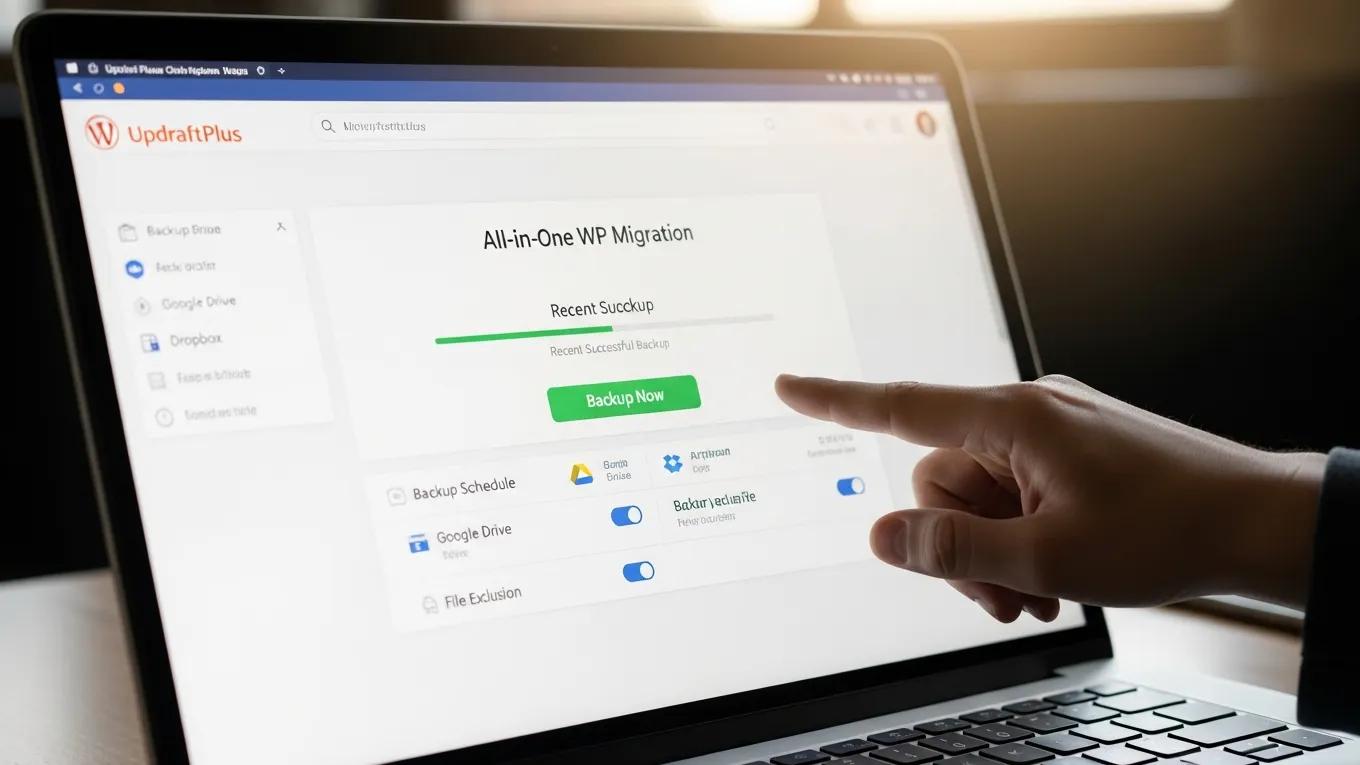
To use UpdraftPlus for restoration, follow these steps:

  1. Install UpdraftPlus: Download and install the plugin from the WordPress repository.
  2. Configure Settings: Set up your backup schedule and storage options.
  3. Restore Backup: Navigate to the UpdraftPlus settings and select the backup you wish to restore.

For BackupBuddy, the process is similar:

  1. Install BackupBuddy: Purchase and install the plugin.
  2. Create a Backup: Use the plugin to create a backup of your site.
  3. Restore: Follow the plugin's instructions to restore your site from the backup.

Both plugins offer robust features that streamline the restoration process.

What Are the Advantages of Using Backup Plugins for WordPress Site Recovery?

Using backup plugins provides several advantages, including ease of use, automated backups, and ongoing support and updates. These plugins simplify the backup process, allowing users to schedule regular backups without manual intervention. Additionally, they often come with customer support, ensuring that users can get help when needed.

What Are the Key Security Measures to Implement After Restoring Your WordPress Site?

After restoring your WordPress site, implementing key security measures is essential to protect it from future threats. This includes changing passwords, updating themes and plugins, and installing security plugins.

How to Harden WordPress Security Post-Restoration?

To enhance your WordPress security after restoration, consider the following steps:

  1. Enable SSL: Secure your site with an SSL certificate to encrypt data.
  2. Limit Login Attempts: Use plugins to restrict login attempts and prevent brute force attacks.
  3. Conduct a Security Audit: Regularly review your site for vulnerabilities and address any issues.

These measures help safeguard your site against potential threats.

Which Maintenance Plans Support Ongoing Backup and Security Management?

Choosing a maintenance plan that includes regular updates, daily backups, and security monitoring is crucial for ongoing site protection. These plans ensure that your site remains secure and up-to-date, reducing the risk of data loss and security breaches.

Backup TypeDescriptionFrequency
Daily BackupsAutomatic backups of your site dataDaily
Off-site BackupsBackups stored in a separate locationWeekly
Security MonitoringRegular checks for vulnerabilitiesContinuous

For detailed pricing information, Ahrefs offers transparent tier-based plans that cater to different user needs.

Many users find that UpdraftPlus simplifies the backup and restoration process with its user-friendly interface and reliable features.

Additionally, implementing limit login attempts plugins is an effective security measure to prevent unauthorized access after restoration.

Secure WP Solutions
Privacy Overview

This website uses cookies so that we can provide you with the best user experience possible. Cookie information is stored in your browser and performs functions such as recognising you when you return to our website and helping our team to understand which sections of the website you find most interesting and useful.